Follow this clear, step-by-step guide to download and install NavipTV on your Amazon Fire TV / FireStick using the Downloader app in under 3 minutes.
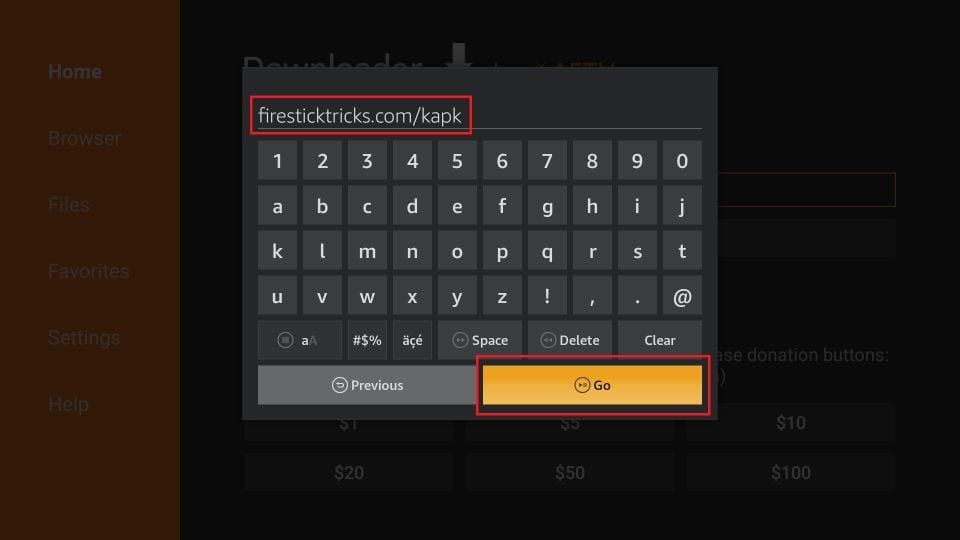
Open Downloader App on your FireStick and enter shortcode:
From the home screen of your Fire TV / Stick, use your remote to navigate to the Find > Search menu option in the middle of the screen.
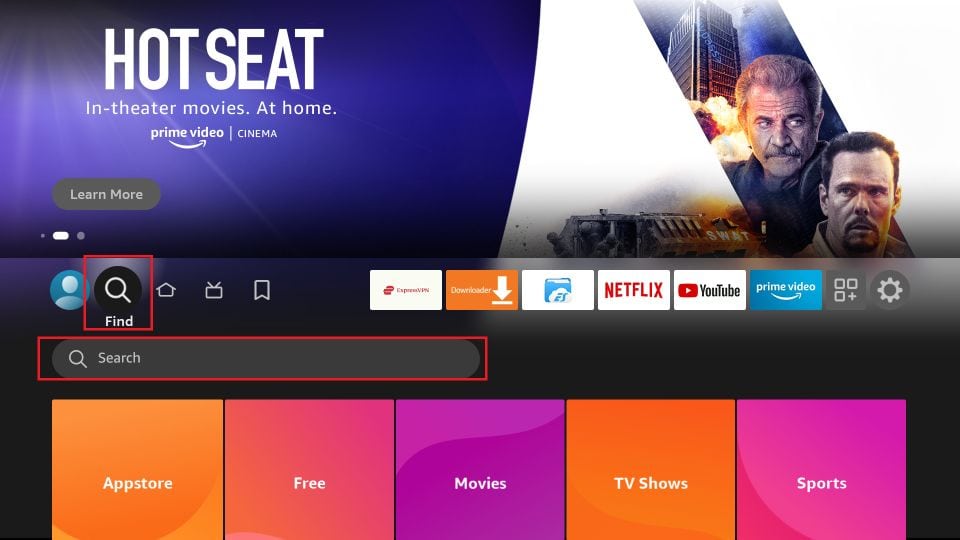
Type in Downloader using the onscreen keypad. Select Downloader from the search suggestions beneath.
Click on the Downloader icon under APPS & GAMES section and select 'Get' or 'Download'. The app will install within a few moments.
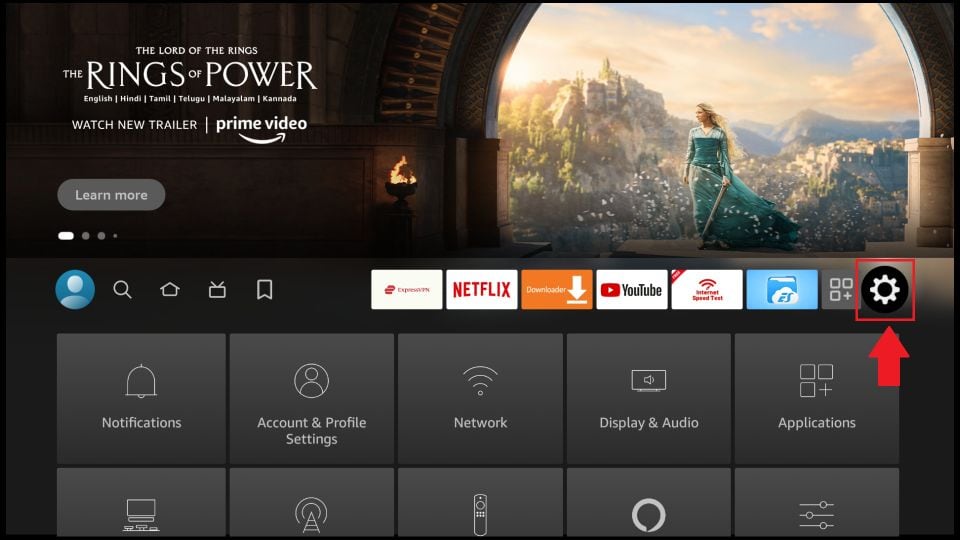
Return to the FireStick home screen, navigate to the Settings (Gear Icon) on the far right, and select My Fire TV.
Click on Developer Options. (Note: If Developer Options is hidden, click 'About' and press the center button on your remote 7 times to unlock it).
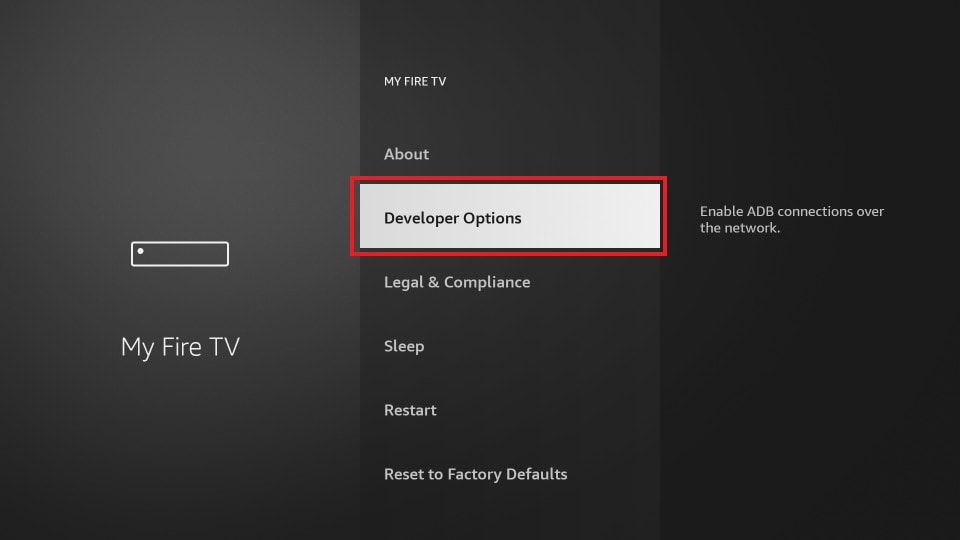
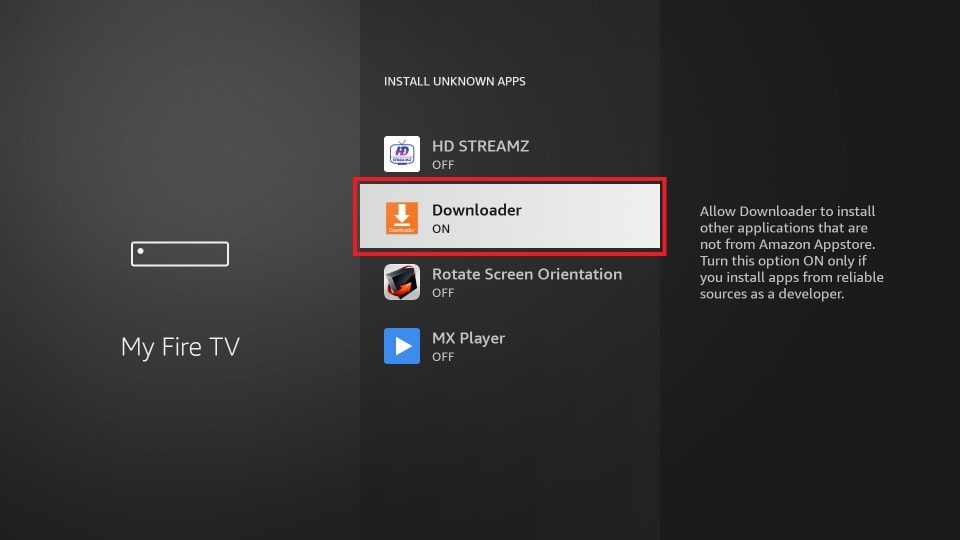
Click Install unknown apps (or Apps from Unknown Sources) and turn the toggle to ON for Downloader.
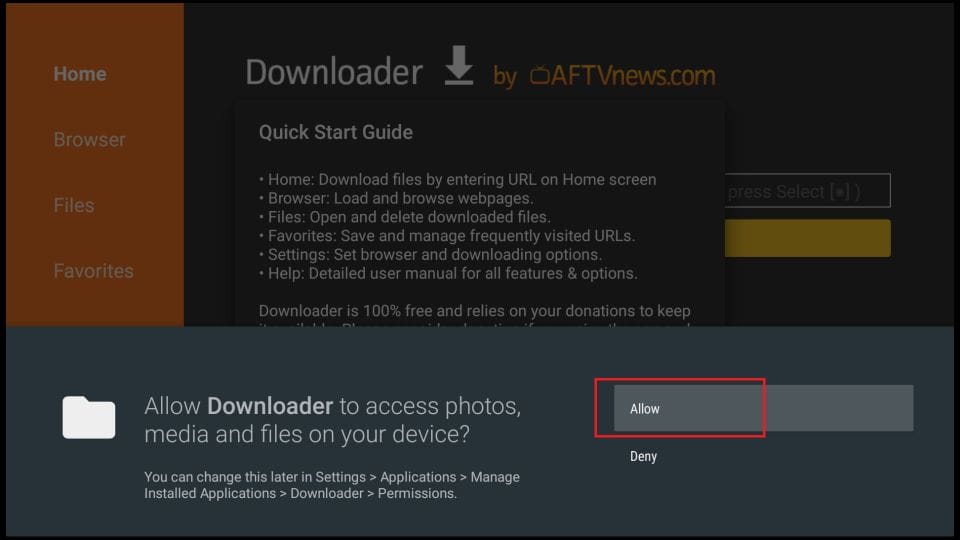
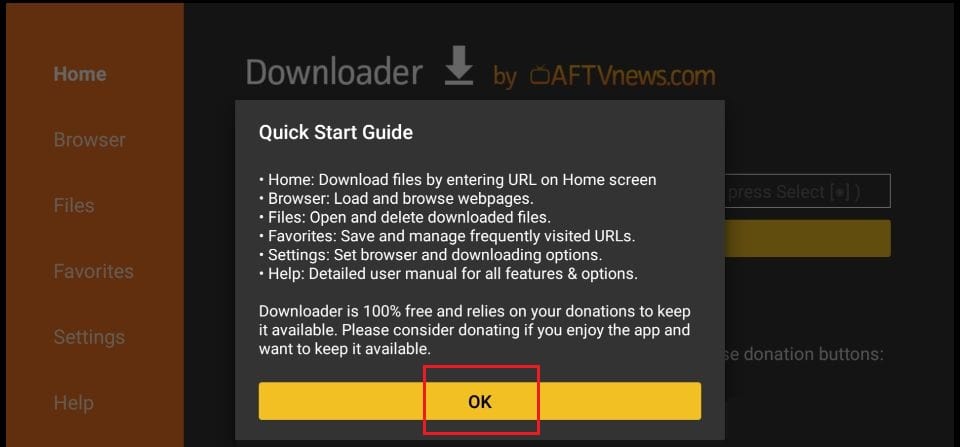
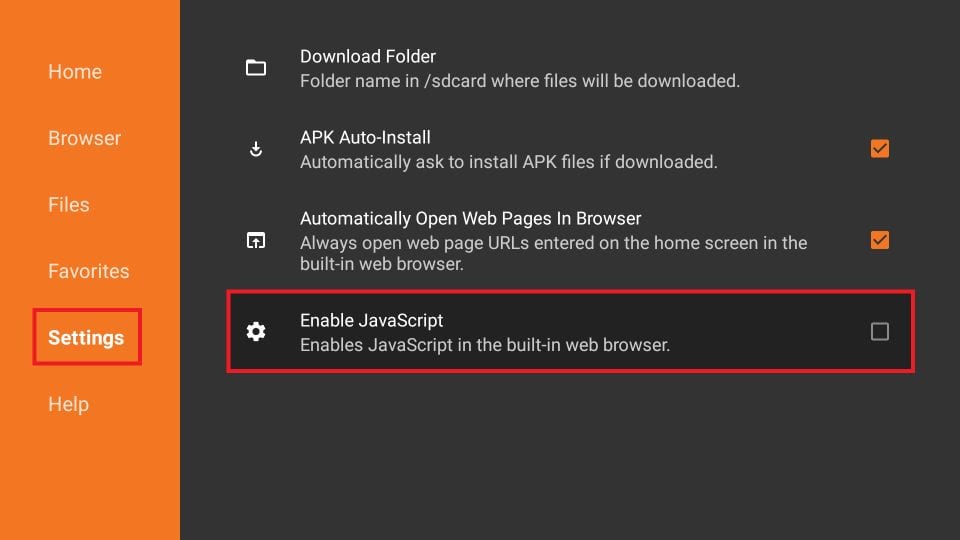
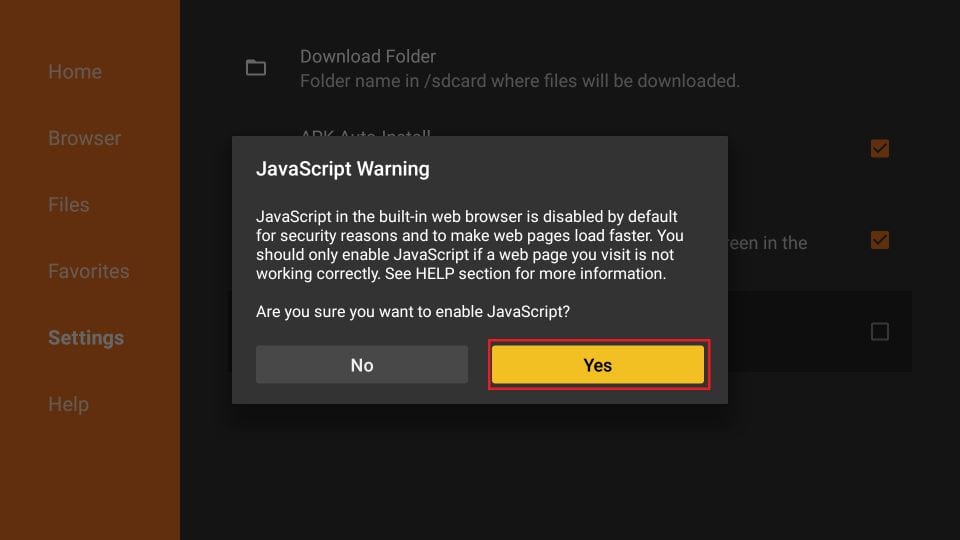
Open Downloader, click Allow for file permissions, then go to Settings in the left sidebar and check Enable JavaScript for smooth downloading.
Click the Home tab on the left sidebar, click in the URL input box, type 204629, and click GO. NavipTV APK will download automatically!
Once the download completes, click Install on the bottom right prompt. After installation finishes, click Open to launch NavipTV and start streaming!
If the Downloader app is restricted or not visible in your regional Amazon Store, you can use the Unlinked App with code naviptv, or join our Telegram Community Group for direct support.
 EN
EN
 FR
FR